How to use Plated / Feed and Profile
Feed and Profile
The Feed shows your posts and posts from everyone you follow, newest first. Profile is your own page, and Settings is reached from it.
PRO needs Plated Pro. iPhone only works in the iPhone app but not on the web.
The feed
Find people and follow them#
- Tap the Search magnifier at the top of any tab.
- Type a name or @handle. People appear under People.
- Tap Follow. It changes to Following.
- If the account is private, it shows Requested until they accept.
TipTo unfollow, tap Following on their profile or in search.
Read and refresh the feed#
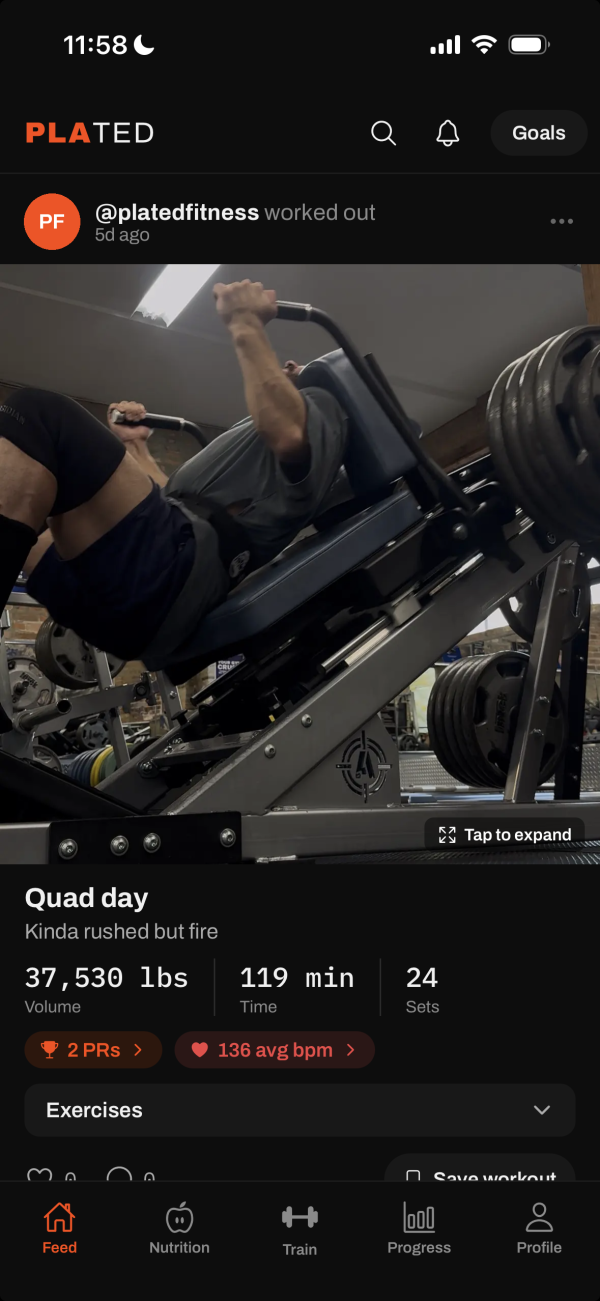
- Each post shows who posted it, what they did and when.
- Pull down to refresh.
- Swipe across photos if there’s more than one. Tap a photo or video to see it full screen.
- Tap Exercises on a workout post to see every exercise and its sets.
- Tap the N PRs or avg bpm badges for the highlights and the heart-rate chart.
Post a workout, run or meal#
- A workout or run: finish it on the Train tab, add photos and a caption, and tap Post to feed.
- A meal: on the Nutrition tab, tap a logged food, tap the share icon, choose Post to feed, and post.
- An older workout you never shared: Profile → Workouts → tap it → Post.
TipThere’s no compose button on the Feed. You post from where the activity happened.
Like and comment#
- Tap the heart under a post to like it. Tap again to unlike.
- Tap the speech bubble, type in Add a comment... and tap Post.
- To delete your own comment, tap its bin icon and confirm.
- To report someone’s comment, tap its flag icon.
Compare an exercise with a friend’s#
- On a workout post, tap Exercises, then tap an exercise.
- See Theirs, Yours and Diff. Switch between Max weight and Max volume.
- Press and drag across the chart to read values.
TipComparing one exercise is free.
Save a workout or exercise from a post PRO#
- On someone’s workout post, tap Save workout. It goes into your saved workouts on the Train tab.
- To take one exercise, tap Exercises, then Add to my library under it.
TipSaving from your own posts is free.
Manage your own post#
- Tap ••• at the top right of your post.
- Add, replace or remove photos and videos.
- Tap Add Note or Edit Note to change the text.
- Make a Sticker makes a story sticker from a workout post.
- Archive hides the post from the feed. Delete removes it for good.
Report a post or block someone#
- On someone else’s post, tap •••.
- Tap Report Post. To add detail, fill in Anything else? (optional) first, then tap a reason. The report sends as soon as you tap the reason.
- Or tap Block @handle and confirm Block. Neither of you will see the other’s posts or comments.
- To unblock, go to Profile → ☰ → Settings → Blocked accounts → Unblock.
TipEvery report is reviewed within 24 hours.
Use notifications#
- Tap the bell. An orange badge shows how many are unread.
- Tap a notification to go to the post, comment, profile or shared food it’s about.
- For a follow request, tap Accept or Decline.
- Swipe a notification left and tap DELETE to remove it. Mark all read clears the badge.
Profiles
Look at someone’s profile#
- Tap a name on a post, in search or in a notification.
- See their posts, followers and following, and Follow.
- Open Workout calendar or Muscle heatmap. Compare with me (Pro) adds yours alongside.
- Browse their Posts, Workouts and Awards tabs.
Find your way around your profile#
- Open Profile. The ☰ icon at the top right opens Settings.
- Under your photo: posts, followers and following. Tap a count to see the list.
- Edit goals opens your targets. Share profile sends a link to your profile.
- Four tabs: Posts, Workouts, Awards and Overview.
Use the four profile tabs#
- Posts: a grid of your posts. The grid and list icons switch the view.
- Workouts: every session. Tap one you never shared to Post or Delete it.
- Awards: your achievements, with filters for Nutrition, Lifting, Consistency and Social.
- Overview: your current weight, daily average calories, today’s macros and your targets.
Change your photo, name and username#
- Tap your profile picture to Take Photo, Choose from Library or Remove Photo.
- Tap your name, or go to Settings → Name.
- In Edit profile, change Name and Username and tap Save.
Make your account private#
- Go to Profile → ☰ → Settings.
- Under Account, tap the Public pill next to Profile visibility. It switches to Private.
- New followers now have to send a request, which you accept in Notifications.
Settings
What’s in Settings#
- Account: your name, handle, email, Profile visibility and, on iPhone, Apple Health sync.
- Subscription: your plan, restore purchases and how to cancel.
- App: How Plated works, Send feedback, import and export, Blocked accounts and Appearance.
- About: privacy policy, terms and Contact support.
- Security (Change password) and Session (Sign out, Delete account).
TipUnits aren’t in Settings. They’re on the Progress tab’s Bodyweight card and the Train tab.
Export your data#
- Go to Profile → ☰ → Settings.
- Tap Export workout history, Export food log or Export body metrics.
- Choose where to send the CSV. All three are free.
Sign out or delete your account#
- Go to Profile → ☰ → Settings.
- Tap Sign out. Your data stays saved to your account.
- Or tap Delete account → Continue → Delete. This removes your profile, workouts, food log and posts for good.
TipDeleting your account doesn’t cancel Plated Pro. Cancel it with Apple too.