How to use Plated / Progress
Progress
The Progress tab is one long page. From the top: Workout calendar, Steps & distance, Muscle activity, Bodyweight, Body measurements and Lift progress.
PRO needs Plated Pro. iPhone only works in the iPhone app but not on the web.
Calendar and steps
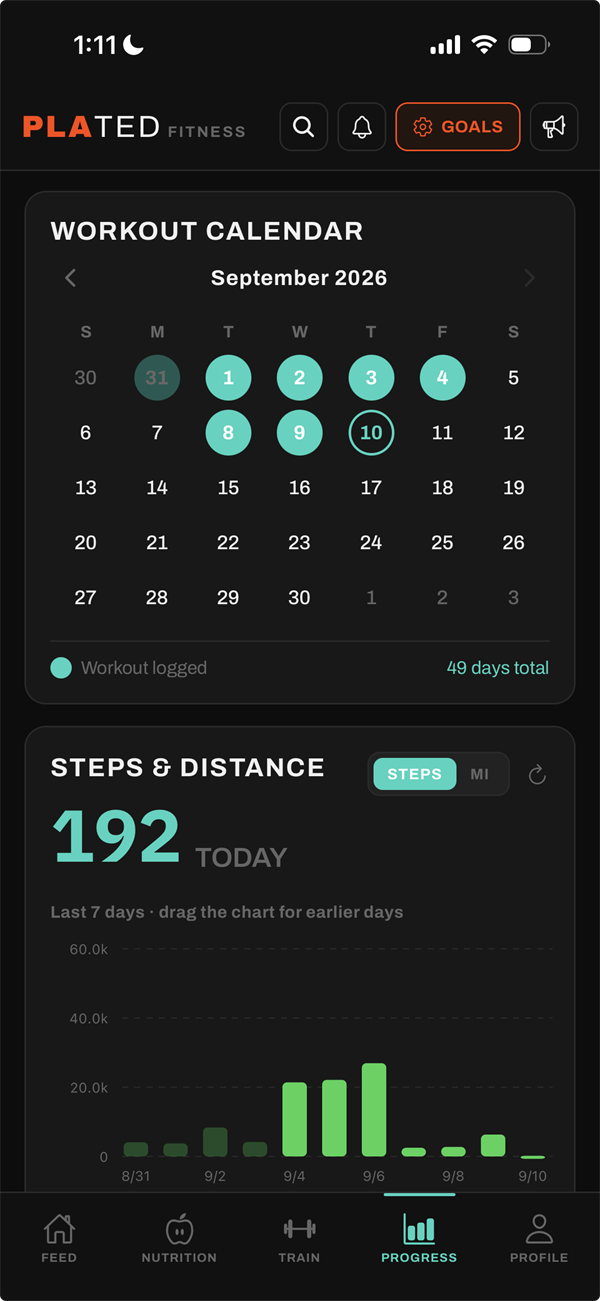
Read the workout calendar#
- Open Progress. Workout calendar opens on this month.
- Days you trained are filled orange circles.
- Use ‹ and › to change month.
- Under the grid, N days total counts every day you’ve ever trained.
See what you did on a given day#
- Tap a day with a filled circle.
- A sheet shows each session: time, volume, sets and, if recorded, average heart rate.
- Every exercise is listed with its sets. Tap ✕ to close.
TipFree accounts browse the last 60 days. Older workouts aren’t deleted, and Plated Pro shows them all.
See your steps and walking distance iPhone only#
- Find Steps & distance.
- The first time, tap Connect Apple Health and allow access.
- The big number is today’s steps. Use the Steps | mi switch to show distance instead.
- Pick a range: 7D, 14D, 30D, 90D, 1Y or Custom.
- Tap a bar to see that day’s figure. Tap ↻ to reload from Apple Health.
TipSteps and distance are free.
Muscle heatmap
Use the muscle heatmap PRO#
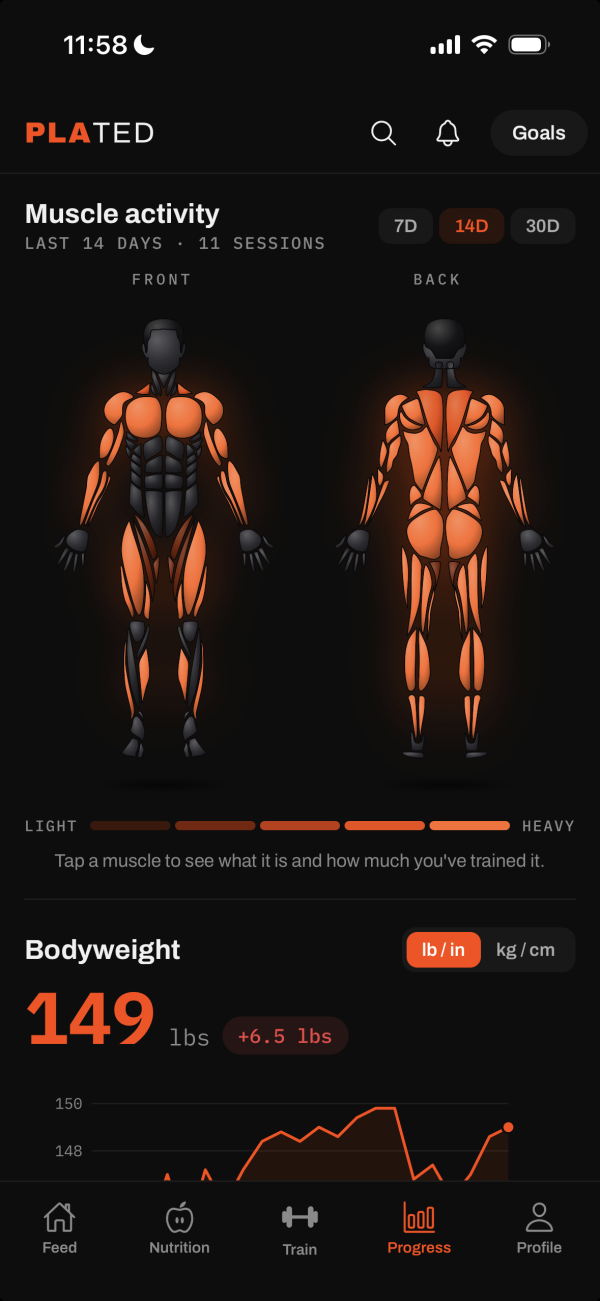
- Find Muscle activity.
- Choose a window: 7D, 14D or 30D.
- The FRONT and BACK figures shade each muscle by how many sets it got, from LIGHT to HEAVY.
- Tap a muscle. A panel shows its sets, sessions, when you last trained it and the exercises that did the most.
- Tap it again, or ✕, to clear it.
TipCustom exercises count too, scored by the muscles you tagged them with.
Bodyweight and measurements
Log your bodyweight#
- Go to the Bodyweight card.
- Type your weight in the box.
- To log a past day, tap the Today date pill first and pick the date.
- Tap Log.
- The big number is your latest weight, with the change since your first entry and a chart below.
Fix or delete a bodyweight entry#
- Under the chart, your latest entries are listed. Tap Show all (N) for the rest.
- Tap an entry’s value.
- Edit it and tap the orange ✓, or tap the red bin to delete it.
Log body measurements#
- Tap Body measurements to open it, then Log measurements.
- Check the date at the top. Tap it to pick a past day.
- Fill in any of the 13 body parts. Each shows your last reading.
- Tap Save N measurements.
TipLeft and right are kept separate, so you can spot a difference between sides.
View and edit one body part’s trend#
- In Body measurements, tap a body part chip.
- You’ll see the latest value, the change and a chart.
- Tap History (N) to list every reading. Tap a value to edit or delete it.
Switch bodyweight units#
- On the Bodyweight card, tap lb / in or kg / cm.
- Bodyweight and measurements switch together. Nothing stored changes.
TipLifts have their own switch, on the Train tab.
Lift progress
See your progress on an exercise#
- Tap Lift progress to open it.
- Filter with the muscle chips, then tap an exercise.
- Choose Max weight, Volume or Best set.
- Read the latest value and the change across the chart.
- Tap ‹ to go back to the list.
TipFree accounts chart the last 7 days; Plated Pro adds older sessions. Est. 1RM is in an exercise’s history on the Train tab.