How to use Plated / Getting started
Getting started
Plated has five tabs along the bottom: Feed, Nutrition, Train, Progress and Profile. This page covers signing up, getting your daily targets and finding your way around.
PRO needs Plated Pro. iPhone only works in the iPhone app but not on the web.
Sign up
Get your plan before you sign up#
- Open Plated for the first time. An About you sheet appears before the sign-in form. You don’t need an account yet.
- Answer Gender, Date of birth, Weight (lbs or kg), Height (ft or cm) and Activity level. When everything is filled in, tap Next: set goals →.
- On Your goals, pick Lose Fat, Build Muscle, Pure Strength, Athletic / Recomp or Maintain. Tap Calculate →.
- On Macro plan, check Your daily target: calories, plus grams of protein, carbs and fat. Tap Customize macros if you want your own numbers.
- Tap Save & sign up. The sign-up form opens with YOUR PLAN, READY TO SAVE across the top.
TipIn a hurry? Tap Skip (top left) or Skip — take me to sign up. Plated asks the same questions after you sign up.
Create an account#
- On the sign-in screen, tap the CREATE ACCOUNT tab.
- Fill in FULL NAME, USERNAME, EMAIL and PASSWORD. Usernames need at least 3 characters: letters, numbers and underscores only.
- Your password must pass every rule in the checklist under the field: At least 8 characters, An uppercase letter, A lowercase letter, A number and A symbol (!?@#…). Each rule turns green when it’s met.
- Tick I agree to the Terms of Use and Privacy Policy… and tap CREATE ACCOUNT.
- Open the verification email, tap the link, then come back and sign in.
TipYou can also tap Sign up with Apple (on iPhone) or Sign up with Google, below OR.
Sign in or reset your password#
- Tap the SIGN IN tab.
- Enter your EMAIL and PASSWORD and tap SIGN IN. Or use Sign in with Apple (on iPhone) or Sign in with Google.
- Forgot it? Tap Forgot your password?, enter your email and tap SEND RESET LINK. Follow the link in the email.
TipSigned up with Apple or Google and want a password too? Go to Profile → ☰ → Settings → Set password.
What happens the first time you sign in#
- If you skipped the questions, Set up your profile asks them now. Answer them and tap Save goals ✓, or tap Set up later.
- Plated asks for your date of birth if it doesn’t have it. Plated is for people aged 13 and over.
- The How Plated Works guide opens. Swipe through it, or tap Skip.
- Bring your history with you offers to import workouts from another app. Tap Import my history, or Not right now.
- On iPhone, Plated asks whether it can send notifications, for likes, comments, follows and rest-timer alerts.
Find your way around
Move between the tabs#
- Tap a tab at the bottom: Feed, Nutrition, Train, Progress or Profile.
- You can also swipe left or right on most screens to move to the next tab.
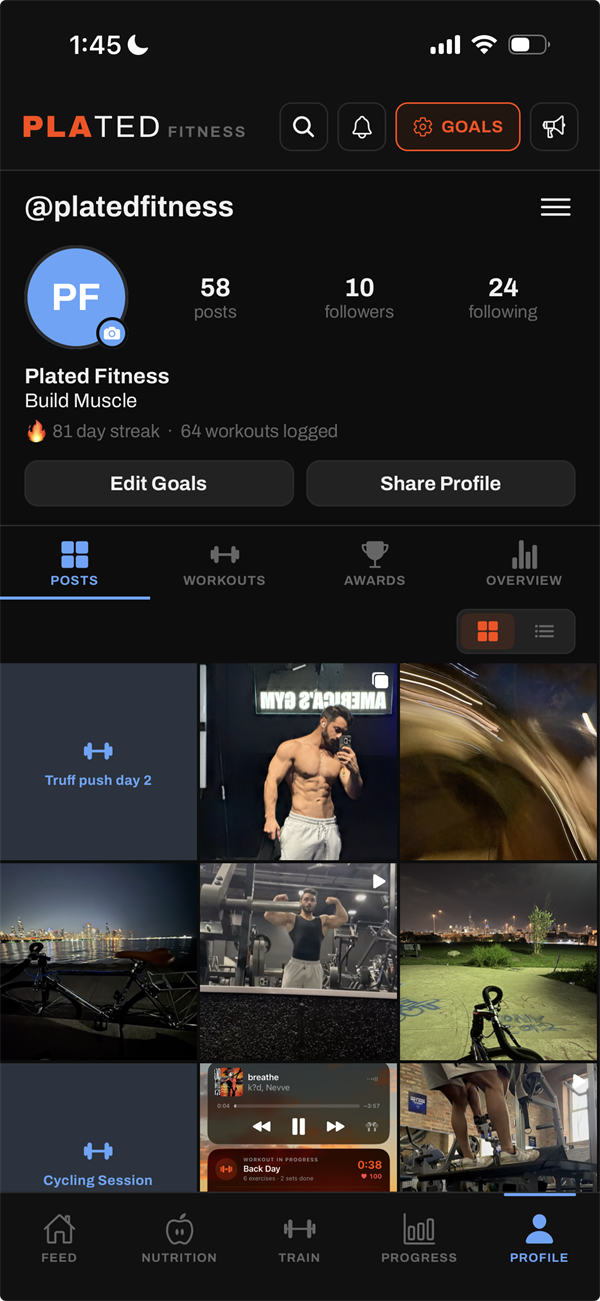
- Every tab has the same three buttons at the top right: Search (the magnifier), Notifications (the bell) and Goals.
- An orange number on the bell means something is unread. Goals opens your calorie and macro targets.
Find any feature with Search#
- Tap the Search magnifier at the top of any tab.
- Type what you’re after into Search people, or anything in Plated…. Try “plate calculator”, “export”, “steps” or a friend’s name.
- Results come in two groups. In Plated lists features and takes you straight there. People lists accounts you can follow.
Open the intro guide again#
- Go to Profile → ☰ → Settings.
- Under App, tap How Plated works.
- Swipe through, or tap Next. Numbered pins on each screenshot match the numbered notes, and Pro features are marked Pro.
- Tap Skip to leave early, or Get started on the last slide.
Open this guide from the app#
- Go to Profile → ☰ → Settings.
- Under App, tap How-to guide. This guide opens in your browser.
Set things up your way
Change your goals later#
- Tap Goals at the top right of any tab, or Edit goals on your Profile.
- Your stats opens with your saved details. Change anything and tap Next: set goals →.
- Pick a goal and tap Calculate →.
- If you already had targets, compare Now and Suggested, then choose Keep mine or Use suggested. Or tap Customize macros to type your own.
- Tap Save goals ✓.
TipPlated won’t save a target below 1,200 kcal a day (1,500 for men). There’s more on targets in the Nutrition guide.
Switch units#
- Bodyweight and body measurements: on the Progress tab, use the switch on the Bodyweight card: lb / in or kg / cm.
- Lifts, volume and cardio distance: on the Train tab, use the Units switch under the top tabs: lb / mi or kg / km.
- Food: each serving sheet lets you pick g, oz, lb, kg, fl oz or ml for that entry.
TipSwitching never changes what’s stored, so you can switch back and forth safely.
Switch between dark and light#
- Go to Profile → ☰ → Settings.
- Under App, tap Appearance.
- Choose Dark or Light. Plated restarts for a moment to switch.
Plated on the web
Use Plated in a web browser#
- Go to plated-fitness.com/app/ and sign in with the same account. Your food, workouts and profile are the same as on your phone.
- On a wide screen, the tabs move to a sidebar on the left.
- Some things need the phone app, such as barcode scanning and AI label scanning. See what’s different on the web.
- Plated Pro can’t be bought on the web. Subscribe in the iPhone app, and Pro is active on the web the next time you sign in.