How to use Plated / Nutrition
Nutrition
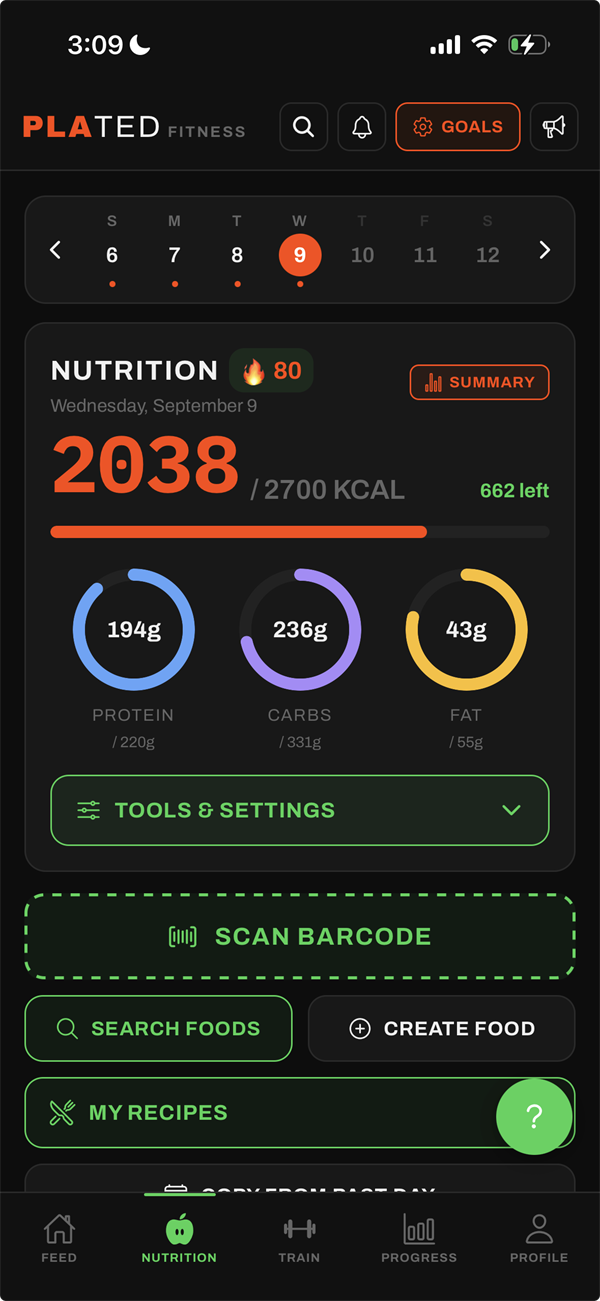
The Nutrition tab is your food diary, one day at a time. From the top: a week strip, the day’s totals, a Tools & settings panel, the search box and Scan button, and then one section for each meal. The round ? button in the corner explains each tool.
PRO needs Plated Pro. iPhone only works in the iPhone app but not on the web.
Your day
Read your day at a glance#
- The heading is the selected date. If you have a logging streak, a flame and a number sit beside it.
- The big number is the calories you’ve eaten, then your target, then N left. Once you go past your target it reads N over in red.
- The bar under it fills toward your calorie target.
- Three rings show PROTEIN, CARBS and FAT: grams eaten in the middle, your target underneath.
- No targets yet? You’ll see a Set your macro targets card instead. Tap it to set them.
TipTap Summary, at the right of the day heading, for averages over a week, a month or any range.
Move between days#
- Tap a date in the week strip. A dot under a date means you logged food that day.
- Use the ‹ and › arrows to move one day at a time.
- Swipe the week strip left or right to jump a whole week.
- Anything you log goes onto the selected day, so you can fill in yesterday or plan tomorrow.
Set your calorie and macro targets#
- Tap Goals at the top right, or Set your macro targets on the Nutrition tab.
- Your stats: set Gender, Date of birth, Weight, Height and Activity level, then tap Next: set goals →.
- Your goals: pick a goal and tap Calculate →.
- Macro plan: Your daily target shows calories, protein, carbs and fat. If you had targets already, choose Keep mine or Use suggested.
- To set your own, tap Customize macros. Type the calories, then adjust protein and fat. Carbs fill in the rest. Reset to recommended undoes your changes.
- Tap Save goals ✓.
TipPlated won’t set a target below 1,200 kcal a day (1,500 for men). If you type less, it offers the minimum instead.
Keep a logging streak#
- Log at least one food every day. The streak counts days in a row, ending today (or yesterday, if you haven’t logged yet today).
- When you log your first food of the day, a card shows Streak started! or N-day tracking streak!. Tap Nice to close it.
- Tap the flame next to the date to see the card again.
See your nutrition summary#
- Tap Summary at the right of the day heading.
- Choose Last 7 days, Last 30 days or Custom. For Custom, tap a start date and then an end date.
- Read Avg. calories / day and its status, such as On track or Over goal.
- Scroll for Daily macros, Calories by meal, Calorie history and Day by day. Tap a meal in Calories by meal for its macros.
Log food
Log a food by searching#
- Tap Search foods and restaurants, or tap Add food under a meal. The Add food sheet opens.
- Check the meal chips near the top and tap the meal you want.
- Type into Search foods.... Your own foods come first (My foods), then Recent matches, then Results from the food databases.
- Tap a food to open its serving sheet. Choose an amount and tap Add.
- The search sheet comes back so you can log the next food. Tap ✕ when you’re done.
TipBefore you type, the sheet lists your recent foods. A recent food opens with the amount you used last time.
Choose a serving size and unit#
- In the serving sheet, tap Serving size. The list starts with the food’s own serving, such as “1 cup (240g)”, then g, oz, lb, kg, fl oz and ml.
- Type the amount into Number of servings. With a weight or volume unit, the field reads Amount (oz) or similar.
- Tap Meal to move the food to a different meal.
- The donut and the Carbs / Fat / Protein percentages update as you type. Tap Add.
TipIf a food has no weight yet, a 1 serving weighs row appears first. Fill it in and the weight units become available.
Log a restaurant meal#
- Type the chain and the dish into Search foods and restaurants, for example “chipotle chicken”.
- Look for the Restaurant badge in the results. The chain’s name is in orange underneath.
- Tap the item. Log it by the serving, by the piece (say, one wing from a 6-count) or, when the chain publishes a weight, in grams or ounces.
TipBrowse what’s on offer on our restaurant macros pages.
Scan a barcode iPhone only#
- Tap the orange Scan button next to the search box, or Scan barcode at the top of the Add food sheet.
- Allow camera access if you’re asked.
- Point the camera at the barcode. Tap the flash icon for the torch, or Cancel to back out.
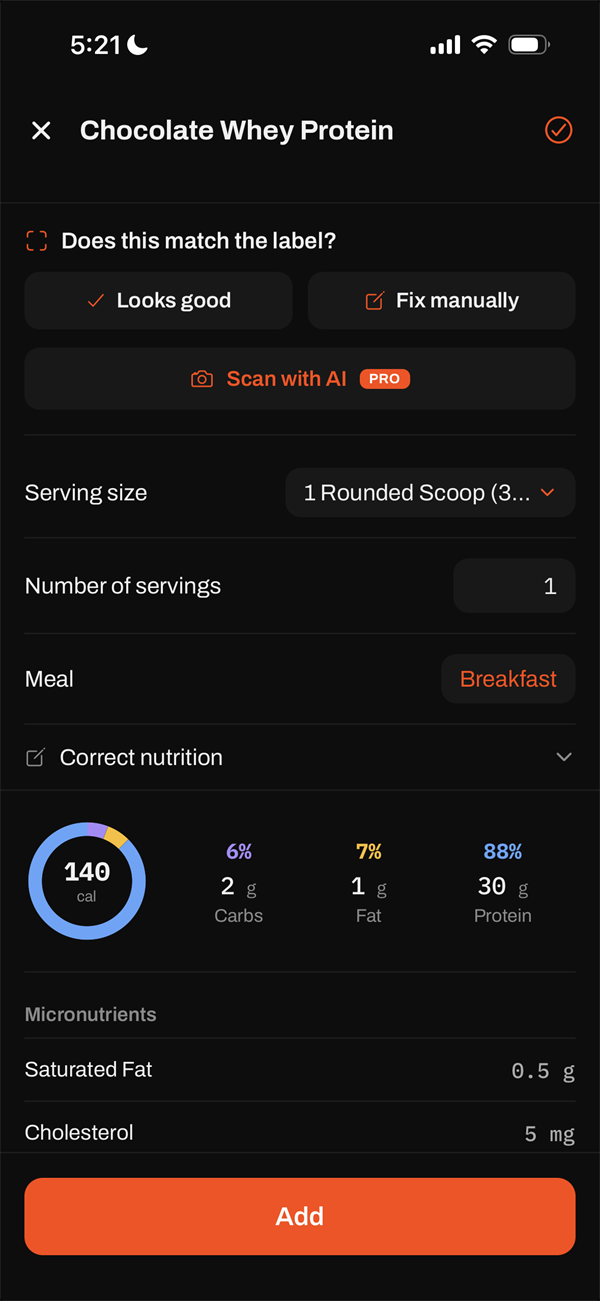
- When Plated finds the product, the serving sheet opens with a Does this match the label? check.
- Not found? Tap Enter nutrition facts on the Product not found card. The barcode is filled in for you, so the next person who scans it gets your numbers.
Scan a barcode from a photo iPhone only#
- Open the scanner as above.
- Tap Photo (bottom left) and choose the picture.
- A straight-on shot with the whole barcode in frame works best. If none is found, you’ll see No Barcode Found.
Check or correct a scanned food#
- After a scan, the serving sheet asks Does this match the label?
- Tap Looks good to carry on, or Fix manually to open Correct nutrition.
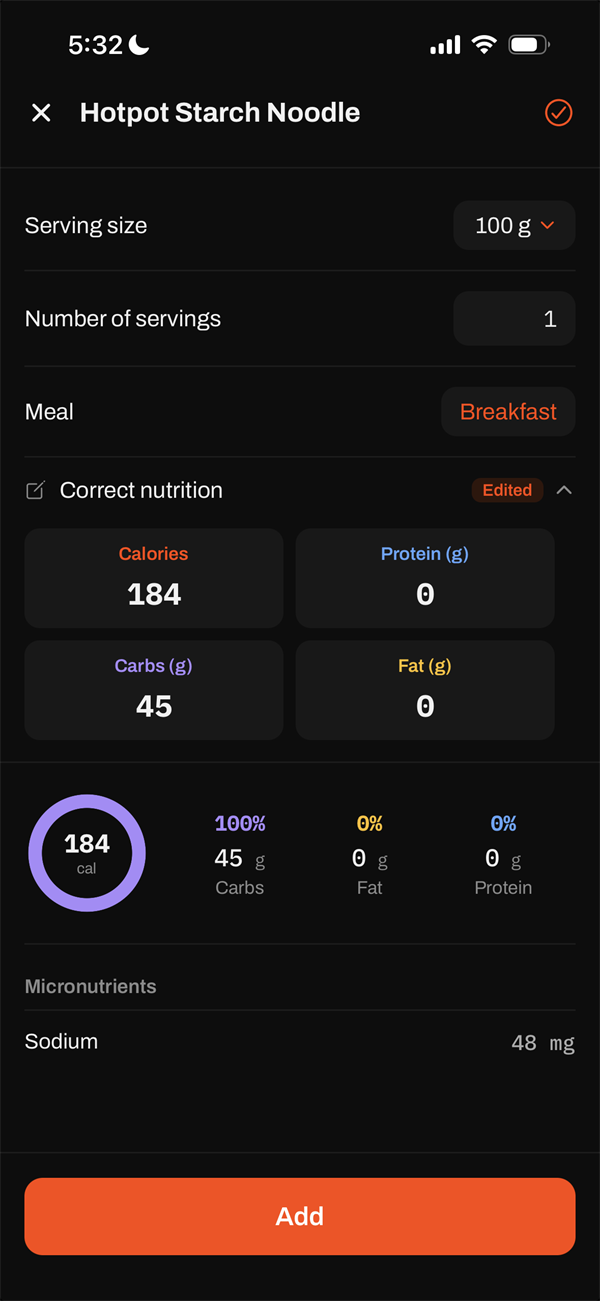
- Edit Calories, Protein (g), Carbs (g) and Fat (g) for one serving. An Edited badge shows you changed them.
TipCorrect nutrition is on every food’s serving sheet, not only scanned ones. Tap it to open or close the fields.
Read a nutrition label with AI PRO iPhone only#
- Scan a barcode. In the Does this match the label? box, tap Scan with AI.
- Choose Take Photo or Choose from Library.
- Wait for Analyzing label…. The label’s calories, macros and micronutrients replace the database numbers.
- Correct nutrition opens so you can check the values. Then tap Add.
TipLabels in any language work, including ones that give energy in kJ or values per 100 g.
Look up a food with AI PRO#
- Open the Add food sheet and type the food’s name, for example “homemade lasagna”.
- Tap Look up "homemade lasagna" with AI.
- After Estimating nutrition…, the serving sheet opens with an estimate. Adjust the amount and tap Add.
TipAI estimates are close but not exact. Check them against the package when it matters.
Create your own food#
- Tap Create food under the search box.
- Under Basic info, fill in Food name, and optionally Brand. On iPhone you can tap Scan to add the Barcode.
- Under Serving, fill in Serving size, Weight per serving and Servings / container.
- Under Nutrition facts, fill in Total fat, Total carbohydrates and Protein. Calories fills itself in, and you can type over it.
- Tap Save. If the numbers look off, Heads up before saving offers Review or Save anyway.
- The food is saved to My foods and its serving sheet opens, ready to log.
TipPro on iPhone: tap Scan label with AI at the top, add up to four photos and tap Analyze photo. The form fills itself in.
Foods you create are shared with other Plated users as Community foods. Recipes aren’t shared.
Edit or delete one of your foods#
- Tap Search foods. Your foods are listed under My foods, each with a My food badge.
- Tap ••• at the end of the food’s row.
- To change it, tap Edit. The Edit food form opens filled in. Change anything and tap Save.
- To remove it, tap Delete and confirm. Portions you already logged stay in your diary.
TipTapping the row itself still logs the food, as before.
Recipes, copying and editing
Build a recipe#
- Tap My recipes, then New recipe.
- Enter a Recipe name.
- Tap Add ingredient and search for each one. Each starts at 100 g. Change the grams on its row.
- Under End weight, enter the cooked dish’s total weight in grams. Cooking usually makes it lighter.
- Check Macro breakdown (Whole recipe and Per 100g), then tap Save.
TipOn iPhone, the Scan button next to Add ingredient adds a packaged ingredient from its barcode.
Log, edit or delete a recipe#
- Tap My recipes and tap a recipe. It opens a serving sheet for the whole recipe.
- To log a portion, choose g under Serving size, enter your portion’s weight and tap Add.
- To edit it, tap its pencil icon. Change the ingredients and tap Save.
- To delete it, tap its bin icon and confirm Delete. Portions you already logged stay in your diary.
Copy food from a past day#
- Tap Copy a day under the search box. The newest day is at the top.
- Tap a day to open it. Its foods are grouped by meal.
- Tick the foods you want, or tap Select all (N).
- Tap the copy button at the bottom. The foods go onto the day selected on the Nutrition tab, under their original meals.
Copy a previous meal#
- Find the meal you want to fill, for example Breakfast.
- Tap Copy previous below it. It only appears if you’ve logged that meal before.
- Everything from that meal on the last day you logged it is copied in one go. Swipe away anything you don’t want.
Edit or delete a logged food#
- Tap a food in your diary.
- Change Serving size, Number of servings or Meal, or open Correct nutrition. Then tap Update log.
- To delete it, tap Remove, or swipe the food left in your diary and tap DELETE.
See one meal’s totals#
- Tap a meal’s name (the header with the ›).
- You’ll see the meal’s calories, rings for Calories, Protein, Carbs and Fat against today’s goal, and its items.
- Pro members also see the meal’s Micronutrients.
Tools & settings
What’s in Tools & settings#
- Tap Tools & settings, under the macro rings, to open or close the panel.
- Meal layout: named or numbered meals.
- Rest-day targets (Pro): fewer carbs on the days you rest.
- Calorie calculator (Pro) and Micronutrients (Pro): the day’s sodium, fiber, iron and more.
TipCreate food, My recipes and Copy a day are the links under the search box.
Change your meal layout#
- Open Tools & settings and tap Meal layout.
- Choose Named (Breakfast, Lunch, Dinner, Snack) or Numbered. Numbered is a Plated Pro option.
- With Numbered, set How many meals, from 2 to 10. Your day previews it.
- Tap Save. Food you already logged keeps its meal.
Set rest-day targets PRO#
- Open Tools & settings and tap Rest-day targets. (It’s also in Goals, on the Macro plan step.)
- Turn on Lower carbs on rest days.
- Under How, choose Carb cycling (training days go up, so the week evens out) or Lower-calorie rest days.
- Under Rest days, tap the days you rest. Under How much lower, pick −10% Mild, −15% Standard or −25% Large.
- Leave A logged workout makes it a training day on if a workout should override the schedule. Check Your days, then tap Save.
TipRest days never go below 1,200 kcal (1,500 for men), or below half your usual carbs.
Switch one day between rest and training PRO#
- Go to the day you want to change.
- Under the date, tap the Rest day or Training day chip (it has a ⇄ icon).
- The day flips and its targets update. Your weekly schedule stays the same.
TipThe chip appears once you’ve turned on rest-day targets.
See micronutrients PRO#
- For a food: open its serving sheet. The Micronutrients card scales to the amount you’re logging.
- For a meal: tap the meal’s name.
- For the whole day: open Tools & settings and tap Micronutrients. Each nutrient shows its share of the FDA Daily Value.
- Nutrients you should limit turn amber, then red, as they climb.
TipA note at the top says how many of the day’s foods carry nutrient data. Label scans and AI lookups fill in more.
Use the calorie calculator PRO#
- Open Tools & settings and tap Calorie calculator.
- Under Enter your macros, type grams of Protein, Carbs and Fat.
- Read Total calories and the Macro split. Tap Clear to start again.
TipIn Goals, Or calculate from a macro split opens the calculator. Use these macros for my goal sends the numbers back.
Use Fill My Macros PRO#
- Below Dinner (or your last meal), tap Fill My Macros.
- Remaining today shows the calories, protein, carbs and fat you have left.
- Choose where ideas come from: Last dinner or Other foods you’ve logged.
- Review the suggestion, with a weight for each food. Tap Another option for a different mix.
- Tap Log this dinner to add it all at once.
Sharing and exporting
Log something a friend sent you#
- A Shared with you card appears on your Nutrition tab, under the day’s totals.
- It shows who sent it, the calories and macros, and their note. Tap View ingredients (N) to see what’s in a recipe.
- Tap Log it to add it to the selected day. For a recipe, Save puts it in My recipes. Dismiss removes the card.
Export your food log#
- Go to Profile → ☰ → Settings.
- Under App, tap Export food log. You get every food you’ve logged, with its macros and micronutrients, as a CSV.
- Choose where to save or send the file. Exporting is free.