How to use Plated / Train
Train
The Train tab is where you start, log and finish workouts. Along the top are three tabs: Workouts, My library and Cardio. Under them, the Units switch sets lb / mi or kg / km for training.
PRO needs Plated Pro. iPhone only works in the iPhone app but not on the web.
Anatomy of the workout screen
Here’s what each control on a running workout does. The numbers match the list beside the picture.
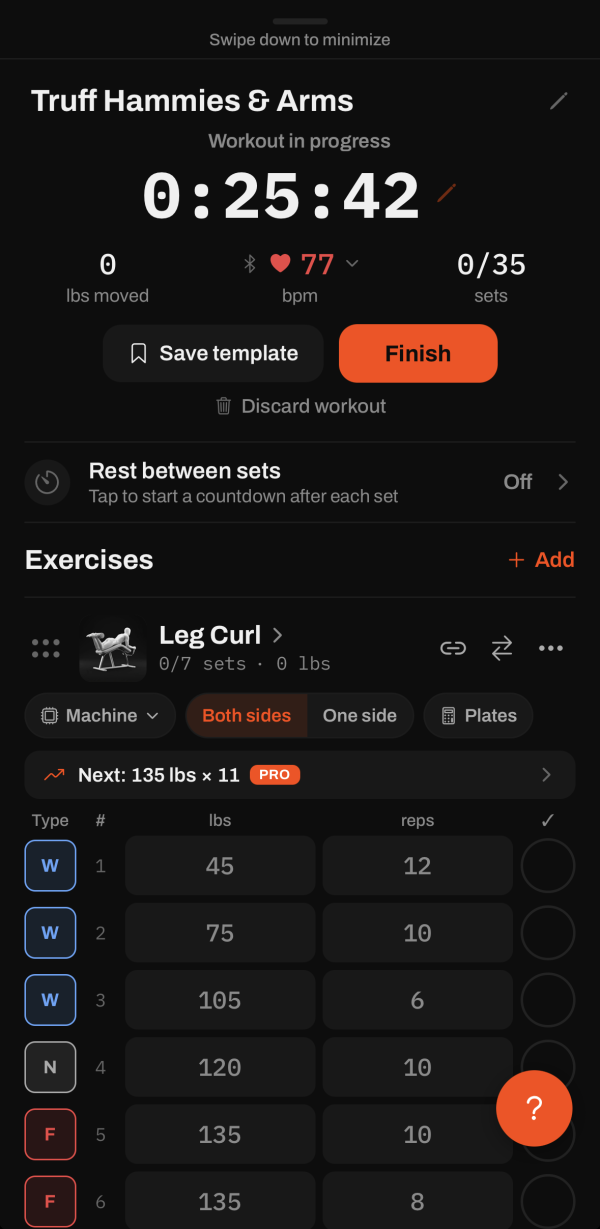
- Swipe down on this bar (or tap it) to minimise the workout. The timer keeps running.
- The workout’s name. Tap it to rename the workout.
- The workout clock. Tap it to adjust the time. Under it: lbs moved, heart rate and sets done.
- Heart rate PRO. Tap the number for a chart; the Bluetooth icon looks for a strap.
- Save template saves this workout to My library. The workout keeps going.
- Finish wraps up and opens the share screen.
- Discard workout throws the session away.
- Rest between sets: a countdown that starts each time you tick a set.
- Add opens the exercise picker.
- The six dots: tap to reorder your exercises.
- The exercise’s name: tap it to open its history (below).
- Link: group exercises into a superset.
- Arrows: replace this exercise with another.
- •••: Muscles (edit the exercise) or Remove from workout.
- Machine: pick the machine you’re on. Each keeps its own history and PRs.
- Both sides | One side: is the weight you enter the total, or one side?
- Plates PRO: what to load on the bar for your next set.
- Next: PRO: tap to fill your unticked sets with the suggested weight and reps.
- Set type: tap to switch between N normal, W warm-up, F failure and D drop set.
- Type the weight and reps for each set.
- Tap the circle to tick the set. It starts the rest timer if it’s on.
- ? explains the icons on the exercise card.
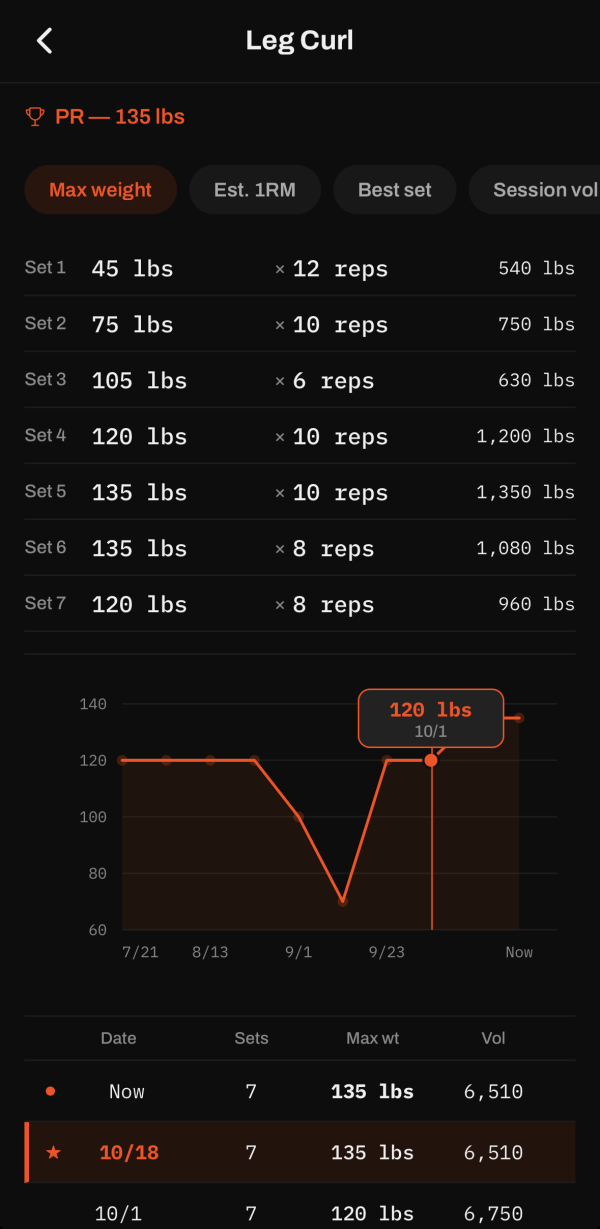
- ‹ goes back to the workout.
- Your PR for the chart you’re looking at.
- Chart tabs: Max weight, Est. 1RM PRO, Best set, Session vol and Total reps. Swipe the row for more.
- The sets you’ve done in this session.
- The chart. Drag across it to read each point.
- Every session, best one starred. Tap one to see its sets, and Edit workout to fix it.
Start a workout
Find your way around the Train tab#
- My library has Create blank workout, Start cardio session, Create template, Browse exercises and Plate calculator.
- Under those, Your saved workouts lists your workouts. Each card is marked My template or Community (saved from someone’s post).
- Cards are sorted by when you last did them. Ones you’ve never done go to the bottom.
- Workouts lists Plated’s built-in splits, each with a Start button, and a search box.
- Cardio lists every run, walk, ride and row you’ve logged.
TipFree accounts keep 4 saved workouts in My library. Workouts saved from the feed don’t count toward the four. Pro has no limit.
Start an empty workout#
- Tap Create blank workout. The timer starts right away.
- Type a name in Name your workout and tap Set name, or tap Skip.
- The exercise picker opens. Tap an exercise to add it.
- To rename the workout later, tap the name line at the top of the workout.
TipIf a workout is already running, Start New Workout? asks first. Start New Workout ends the current one without saving it.
Start from a saved workout or a built-in split#
- On My library, tap Use on a saved workout. Or on Workouts, tap Start on a split.
- The workout opens with its exercises in place.
- Each exercise starts from the sets you did last time, or the template’s sets if it’s new to you. Weights carry over and ticks are cleared.
- Notes and the Both sides / One side setting carry over from last time too.
Build a template without starting a workout#
- Tap Create template. No timer starts.
- Name it, then add exercises. The picker stays open so you can keep adding. Tap X when you’re done.
- Tap Save template, check the name and tap Save. It appears in My library.
- To delete a template, tap Delete on its card in My library, then Delete again. For a Community workout the button is Remove.
Save the workout you’re doing as a template#
- Mid-workout, tap Save template in the timer card at the top.
- Name it and tap Save. The workout keeps running.
TipA free account with 4 templates sees Template limit reached, with Go to My Library to make room, or See Pro.
Exercises
Add exercises#
- In a workout, tap Add next to Exercises, or Add exercise at the bottom of the list.
- Search with “Search exercises...”. Cardio matches words like “bike”, “jog” or “outdoor gps”.
- Or tap a chip to filter: All, Cardio, or a muscle such as Chest, Lats or Quads.
- Tap a tile to add it. Exercises already in the workout show ✓ Added.
TipPress and hold a tile to see its photo larger.
Create a custom exercise#
- In the picker, tap Create custom exercise (or Can’t find it? Add custom exercise at the bottom).
- Fill in Exercise name, and add a Photo if you like.
- Choose a Primary muscle group, and any Secondary muscles. These feed the muscle heatmap.
- Tick Bodyweight exercise (what you log is added to your bodyweight) or Assisted exercise (what you log is the help you got). Or neither.
- Tap Add to workout. If you already have one with a similar name, Already In Your Library lets you use that instead.
Edit an exercise#
- Tap the small pencil on a tile in the picker. Or tap Browse exercises in My library, or ••• → Muscles on an exercise card.
- On Edit exercise, change the Exercise name, muscles, Bodyweight exercise or Assisted exercise. A new name applies across your history.
- Max weight, logged one side sets how one-side sessions count toward PRs: One side or Both sides added.
- Tap Save.
Read the exercise card#
- The header shows a reorder handle, the photo, the name (tap it for history) and a line like “2/6 sets · 1,830 lbs”.
- On the right are three icons: link (superset), swap (replace) and •••.
- Under the header is one row of chips: Machine, Both sides | One side, and Plates. Cardio cards show History instead.
- Tap the photo to see it larger, or to add your own with Take photo or Choose photo.
Pick the machine you’re on#
- Tap Machine on the exercise card.
- Pick from YOUR MACHINES or BRANDS, or type a name under “Another machine” and tap Add. No specific machine clears it.
- The exercise gets its own history, PRs and charts for that machine. If you haven’t ticked sets yet, it loads that machine’s last sets.
- For a new machine, Plated asks if you want to Add photo.
Switch between Both sides and One side#
- On the exercise card, tap Both sides (the weight you enter is the total) or One side (the weight is for one side, and volume counts it twice).
- The first time, Plated asks how one-side sessions should count for max weight and PRs: One side or Both sides added. Not now asks again next time.
- Change your answer any time in Edit exercise.
TipNext time, the exercise starts on whichever setting you used last.
Make a superset#
- Tap the link icon on one of the exercises.
- Tick the exercises to group and tap Done.
- Grouped exercises get a matching coloured Superset badge. To take one out, open the sheet again and untick it.
Replace, remove or reorder exercises#
- Replace: tap the swap icon and pick the new exercise. It keeps the same place.
- Remove: tap ••• → Remove from workout, then Remove.
- Reorder: tap the six-dot handle on any card. Drag the rows into order and tap Done.
Log an assisted exercise#
- Add Assisted Pull Up (under Lats), or your own exercise marked Assisted exercise.
- The weight column reads assist lbs. Enter the machine’s help as a positive number.
- Needing less help counts as progress. The PR is Least assist.
Sets, timers and live tools
Log sets#
- Each row has Type, #, the weight (lbs or kg), reps and ✓.
- Type the weight and reps. On iPhone, Done above the number pad closes the keyboard.
- Tap the circle at the end of the row to tick the set. Tap the ✓ heading to tick every set.
- Tap Add set to add a row that copies the last set.
- To delete a set, swipe the row left and tap the red bin.
TipA number far above your previous best gets a Big Jump Detected check, to catch typos.
Change a set’s type#
- Tap the coloured letter at the start of the row. New sets start as N.
- Choose Normal (N), Warm-up (W), Failure (F) or Drop set (D).
- The badge changes colour: grey N, blue W, red F, amber D.
Add a note to an exercise#
- Tap Note next to Add set.
- Type in “Session notes...”. It’s saved with this exercise.
- Next time you do the exercise, your last note is there for you.
Use the Next suggestion PRO#
- A lift with history shows Next: 240 lbs × 9 (for example), with a short reason underneath.
- Tap it to copy those numbers into every unticked set.
- The suggestion updates as you tick sets.
Use the rest timer#
- Tap Rest between sets under the timer card. It’s off to start with.
- Choose a time from 30s to 5:00. One setting covers the whole workout, and it’s saved with the template.
- Tick a set and a countdown bar appears near the bottom.
- Tap +15s to add time (it’s remembered), or Skip to end the rest.
- When the rest ends, the phone vibrates. With notifications on, you also get Rest complete.
Adjust the workout clock#
- Tap the big timer (it has a pencil icon).
- In Adjust workout time, set Hours and Minutes and tap Confirm.
- If you come back 30 minutes or more after leaving, Welcome back offers Set workout length or Keep the timer running.
Minimise the workout#
- Swipe down on the bar at the top of the workout, or tap it.
- A WORKOUT IN PROGRESS bar with the timer stays at the bottom. Tap it to reopen the workout.
- Switching tabs minimises the workout too. The timer keeps running.
TipYour workout is saved as you go. If the app closes, it comes back with your sets and timer.
Use the Lock Screen and Dynamic Island iPhone only#
- Start any workout. A Live Activity shows the workout name, sets done, the timer and your heart rate if it’s coming in.
- On iOS 17 or later, the next set appears with its weight × reps. Tap SET DONE to tick it without opening Plated.
- While you rest, the countdown shows instead. During a GPS session you get PAUSE and RESUME.
TipLive Activities need iOS 16.2 or later, with Live Activities turned on for Plated.
Connect heart rate PRO#
- Start a workout. The middle stat in the timer card is heart rate.
- Tap Enable HR to use Apple Health, or Connect HR to find a Bluetooth chest strap, watch or band. It searches for up to 30 seconds.
- Garmin or WHOOP: turn on Broadcast Heart Rate first. Apple Watch: start a workout on the Watch itself.
- Once connected, tap the BPM to open a Heart rate this workout chart.
TipHeart rate works in the phone app, not on the web.
Cardio and GPS
Log cardio#
- Tap Start cardio session and pick a type from Recent, Outdoor or Indoor & machines.
- Indoor types, such as Treadmill or Rowing Machine, start a timed session straight away.
- Outdoor types ask How should we track it?: Track with GPS or Just time it.
- On an indoor card, Time · auto follows the workout clock until you change it. Fill in distance and the machine setting where they apply.
- Tap the circle to tick it.
TipYou can add cardio to any workout from the picker’s Cardio chip.
Track a run, walk or ride with GPS#
- On an outdoor cardio card, tap Start run (GPS) (or walk, ride, hike). Allow location when asked.
- The map shows distance, time, pace, speed, max speed and elevation climbed.
- Tap Pause and Resume as you need. Tap Back to workout to log sets while GPS keeps recording.
- Tap Stop ride (or run, walk), then Finish Ride.
- Afterwards, Continue ride adds a new leg to the same ride. Handy for riding to the gym and home again.
TipChoose “Always” for location so tracking carries on with the phone locked. GPS tracking is free.
See splits and elevation#
- On the Cardio tab, tap Splits on a recorded session.
- Or tap a cardio exercise’s History chip in a workout. You’ll see Longest, Best pace, a table of sessions, route maps and splits.
- Elevation climbed shows on the live map and the finish screen.
Finish and save
Finish a workout#
- Tap Finish in the timer card, or Finish workout at the bottom.
- Workout complete shows the time, weight lifted and sets. Tap the time to adjust it.
- Started from a template? Choose Log & update template or Log, keep original template. From a Community workout, Log & save as my template makes it yours. A blank workout shows Log workout.
- The share screen opens next. Nothing is saved to your history until you choose Post to feed or Finish without posting.
Post or save the finished workout#
- Check your stats at the top of the share screen.
- Turn on Show heart rate on the post or Show route on the post if you want followers to see them. Both start off.
- Write a caption, and add up to 5 photos or a video of up to 90 seconds.
- Tap Post to feed, or Finish without posting to save it to your history only.
- Save for later takes you back to the workout, unchanged.
TipWhen you share a route, the first and last 200 m (650 ft) are hidden so your start point stays private.
How PRs work#
- When you tick a set that beats your past sessions, a New PR! card pops up: Max weight, Max reps, Best set, Session vol or Least assist.
- When you save the workout, its PRs go onto the post.
- An exercise’s first-ever session counts as a PR on the post, so a new machine gets its record on day one.
Discard a workout#
- Tap Discard workout under Finish.
- Tap Discard to throw it away, or Keep Going.
TipFrom the share screen, tap X, then Delete Workout.
History and clean-up
View an exercise’s history#
- In a workout, tap the exercise’s name.
- Pick a chart: Max weight, Est. 1RM (Pro), Best set, Session vol or Total reps. Drag across the chart to read each point.
- In the table below, tap a session to see its sets.
TipFree accounts chart the last 7 days and list the last 60. Older sessions aren’t deleted; Plated Pro shows them all.
Edit a past workout#
- In a workout, tap an exercise’s name (or its History chip for cardio).
- Tap a past session, then Edit workout.
- Change any weight or reps. Changed boxes are outlined in orange. Tap the bin to take a set out.
- Tap Save changes. Your charts and PRs update. A post you already shared keeps its original numbers.
TipTo delete a whole workout, open it under Profile → Workouts. Only workouts you never posted have Delete there.
Merge duplicate exercises#
- Go to Profile → ☰ → Settings. Under App, tap Duplicate exercises. It only appears when Plated spots one.
- Each card pairs two names: Keep and Merge in. Tap Swap to keep the other name.
- Tap Merge and confirm. Every set moves to the name you keep. This can’t be undone.
- If they really are different, tap Not the same.
Stickers
Make a sticker when you finish a workout#
- Finish your workout. On the share screen, tap Make a sticker.
- Pick a sticker. Route map and PRs are free. Whole workout, One exercise and One set are Plated Pro.
- Set it up with the chips under Include. A filled tick means that piece is on.
- Tap Save to Photos.
TipMaking a sticker doesn’t post anything. You can still post or save the workout afterwards.
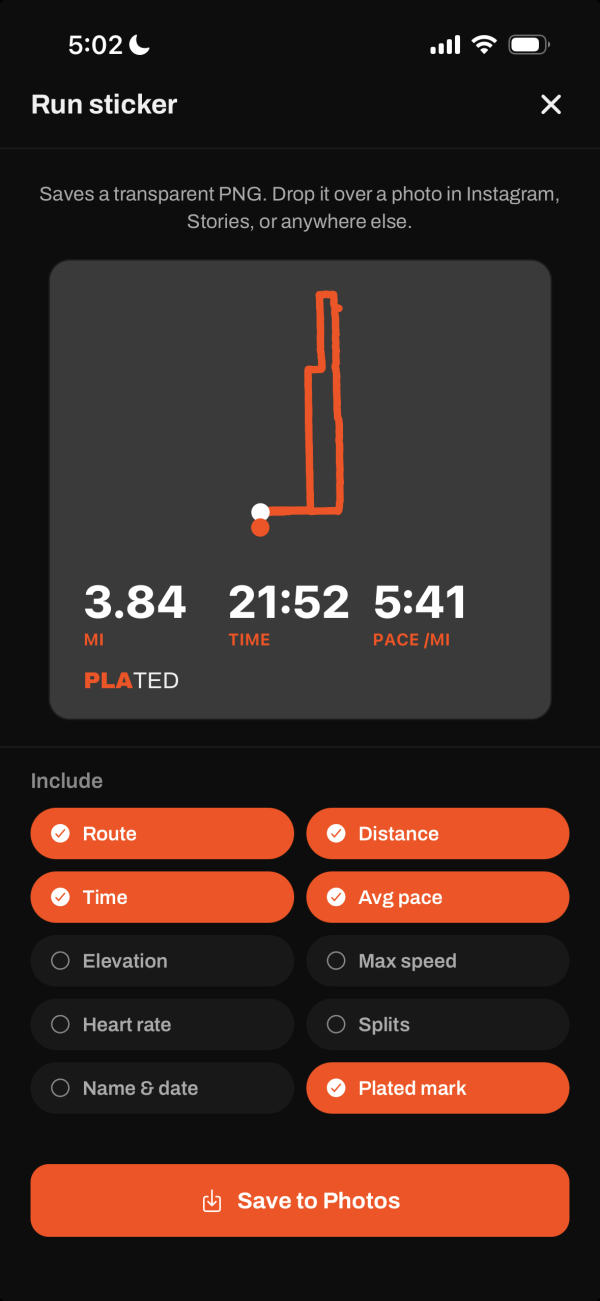
Set up a run sticker#
- Choose Route map. The Run sticker screen opens.
- Under Include, pick from Route, Distance, Time, Avg pace, Elevation, Max speed, Heart rate, Splits, Name & date and Plated mark.
- The route is drawn as a line on a see-through background.
Set up a PR sticker#
- Choose PRs. The PR sticker screen opens.
- Under Style, pick Headline (text straight on your photo) or Card (a dark card that reads on any photo).
- If you set more than one PR, choose one under Which PR.
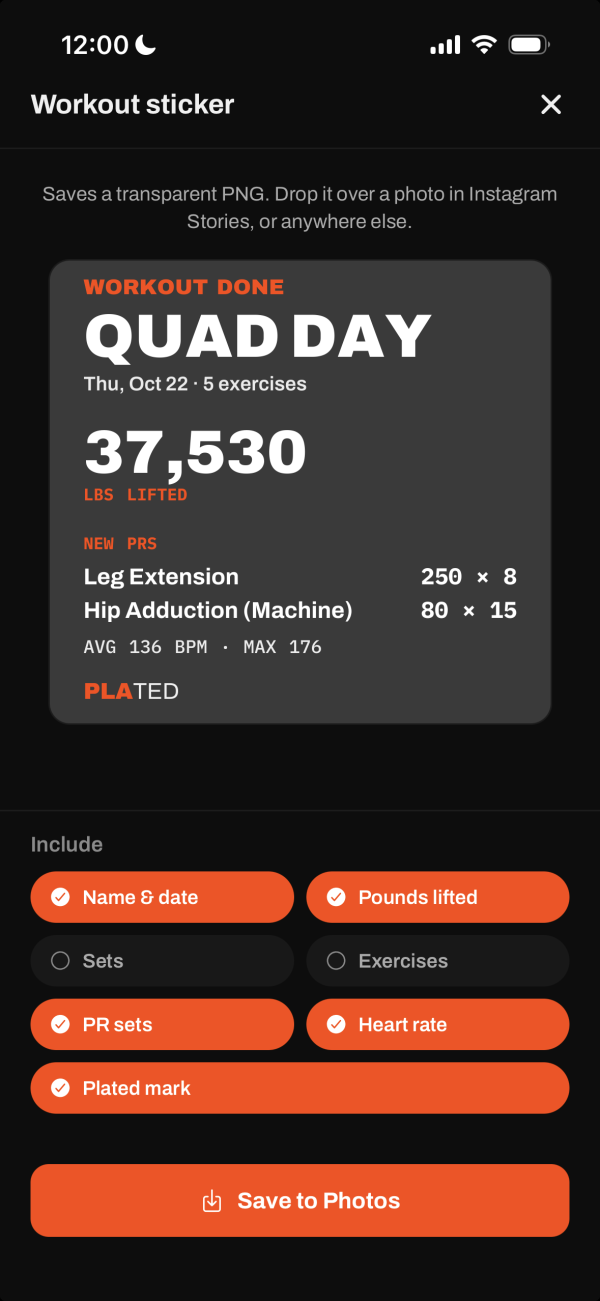
Set up a workout sticker PRO#
- Choose Whole workout. The Workout sticker screen opens.
- Under Include, pick from Name & date, Pounds lifted, Sets, Exercises, PR sets, Heart rate and Plated mark.
- Exercises starts off because it makes the sticker much taller. Turn it on to list every exercise.
Set up an exercise or set sticker PRO#
- Choose One exercise or One set.
- For an exercise, pick a Style: Set list, Top set or Progress (a bar chart of up to 6 sessions).
- For a set, tap the set you want under Set.
- Turn pieces on or off under Include.
TipThese stickers count working sets only: Normal and Failure. Warm-ups and drop sets are left out.
Plate calculator
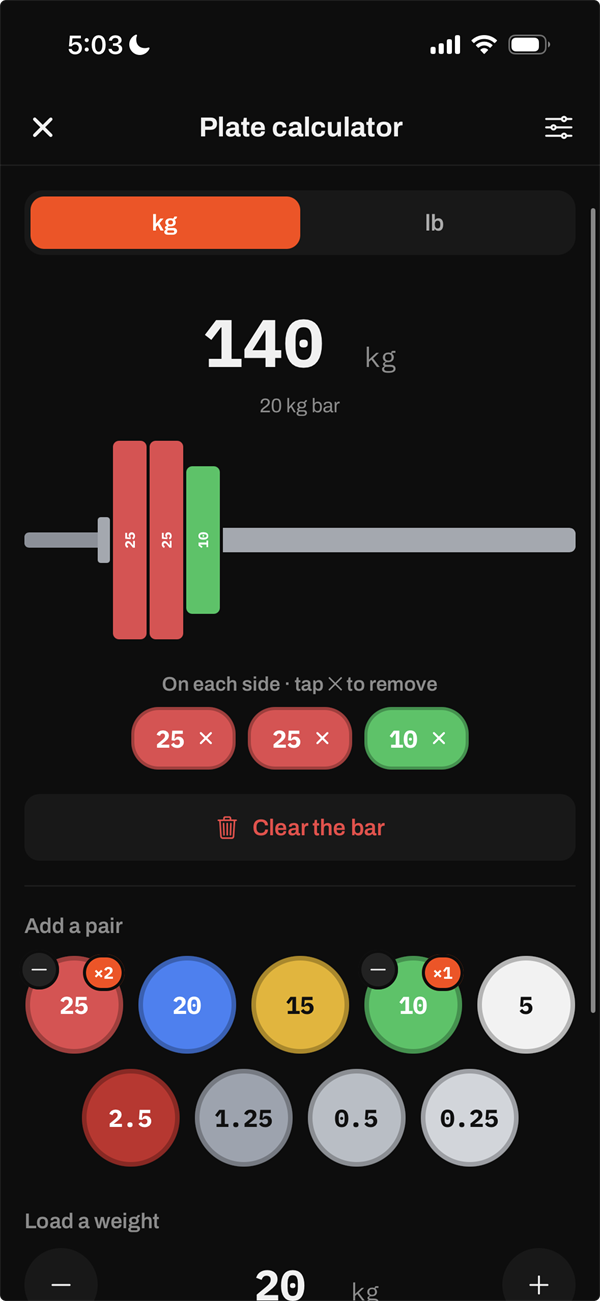
Use the plate calculator PRO#
- Tap Plate calculator on My library, or the Plates chip on an exercise card.
- Choose kg or lb at the top.
- Tap a plate under Add a pair to put one on each side. Or type a total under Load a weight and tap Load.
- Tap a plate’s ✕ to take that pair off, or Clear the bar.
- From a workout, tap Use … for this set to put the weight into the next unfinished set.
TipIf your plates can’t make a weight exactly, the calculator offers the closest weights above and below.
Set up your bar, collars and plates PRO#
- In the plate calculator, tap Bar, collars and the plates you own (or the sliders icon).
- Bar: tap a common weight, or type yours in Other.
- Collars: turn them on and set Each collar.
- Plates you own: use − and +. Count both sides together. Tap Done.
TipYour setup is remembered on this device, separately for kg and lb.
Move your history
Import your history from Hevy, Strong or another app#
- Export your workouts as a CSV from your old app. In Hevy: Settings → Export & Import Data → Export Workout Data.
- In Plated, go to Profile → ☰ → Settings. Under App, tap Import workout history.
- Tap Choose CSV file and pick the file. (The screen is titled Import from Hevy whichever app it came from.)
- If asked, choose the units your old app used, then tap Continue.
- Review the counts and the matches under Check these matches. Tap a row to link it to a different exercise.
- Tick routines under Save as reusable workouts, then tap Import.
TipImporting is free, and importing the same file twice won’t duplicate anything.
Export your workouts as a CSV#
- Go to Profile → ☰ → Settings. Under App, tap Export workout history.
- Save the file or send it from the share sheet.
- You get one row per set, for your whole history. It opens in a spreadsheet, and imports back into Plated.